Installing ValueCapper
The most recent version of ValueCapper is available at:
https://services.posttimedaily.com/software/apps/ValueCapper/2.4/latest
You may also download the latest version from your account page.
Download Instructions
- Visit the download URL above
- Enter your username and password (the same credentials used for downloading race cards)
- The installer will begin downloading
Browser Download Warnings
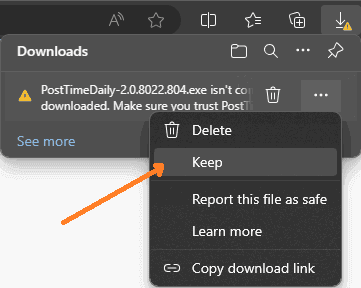
Some browsers may flag the download as suspicious. When this occurs, your browser provides an option to override the block and retain the file.
Windows Security Prompts
Windows may display security warnings during installation. Here's how to proceed:
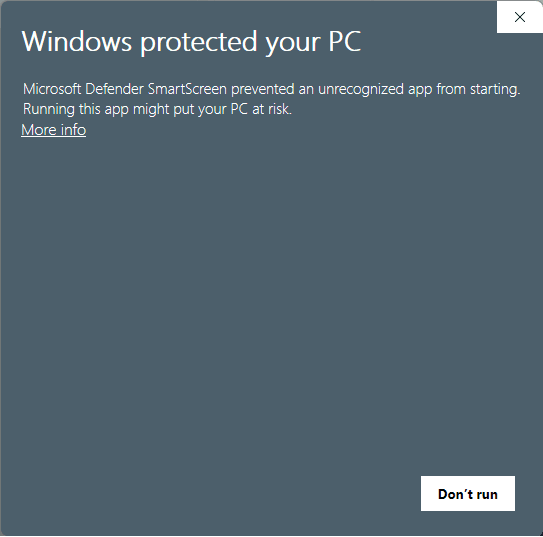
First Warning Screen
If you see a "Windows protected your PC" dialog, click More info followed by Run anyway.
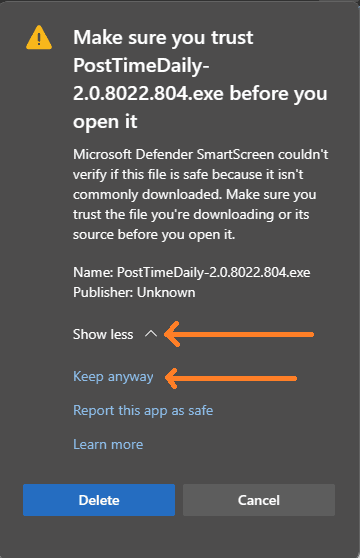
Second Warning Screen
If you see an additional warning, click Show More then Keep anyway.
Permission Dialog
When the permission dialog appears, click Yes and follow the remaining prompts.
Completion
Once installation finishes successfully, ValueCapper is ready to use.
Activation
When you first launch ValueCapper, you'll need to log in with your account credentials. Your subscription will be verified automatically.
Training Course
Don't forget to check out the Comprehensive Training Course to get the most out of your subscription!
Need Help?
If you encounter any issues during installation, please contact us at support@posttimedaily.com or visit our Contact Us page.